How to lock apps on iPhone
To lock apps on iPhone, install App Lock, connect Screen Time, pick the apps you want to protect, and choose Face ID, passcode, schedules, or widgets for control. The setup is built for people who want a fast answer to “how do I lock this app?” without turning iOS settings into a project.
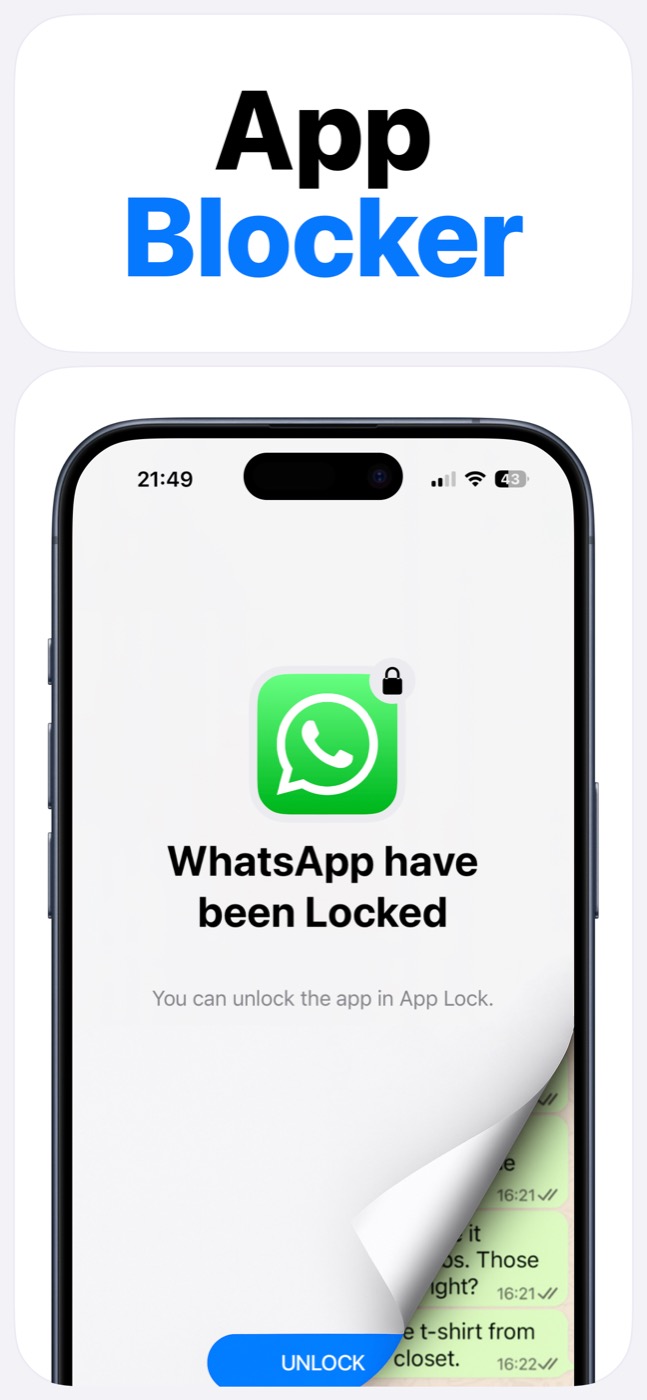
Important limitation
App Lock works within Apple's Screen Time, FamilyControls, and ManagedSettings systems. It cannot bypass iOS restrictions, silently control every app, or read private content inside other apps.
Step-by-step setup
The important step is connecting Screen Time so App Lock can show Apple's app picker and let you choose what to protect.
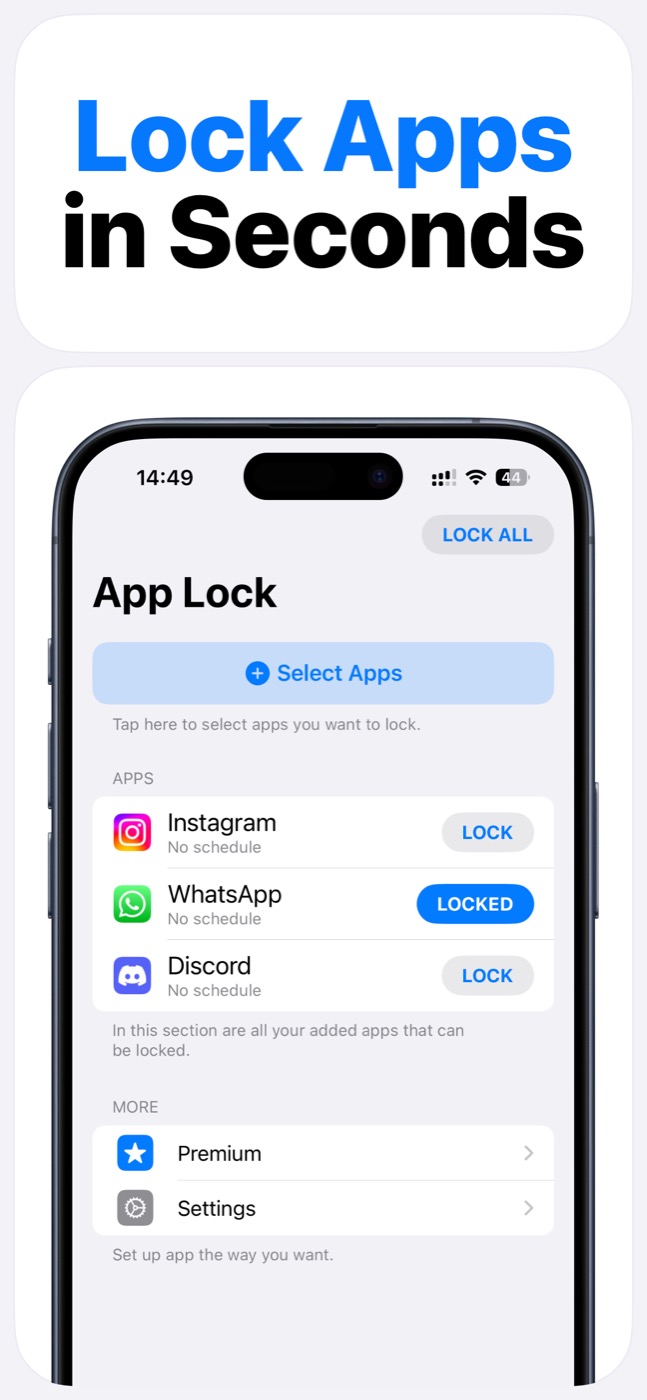
After that, build your protected app list and decide how the lock should work: manual, scheduled, widget-driven, or a mix of all three.
- Install App Lock from the App Store.
- Open App Lock and connect Screen Time when iOS asks for permission.
- Use Apple's app picker to select apps, categories, or websites to protect.
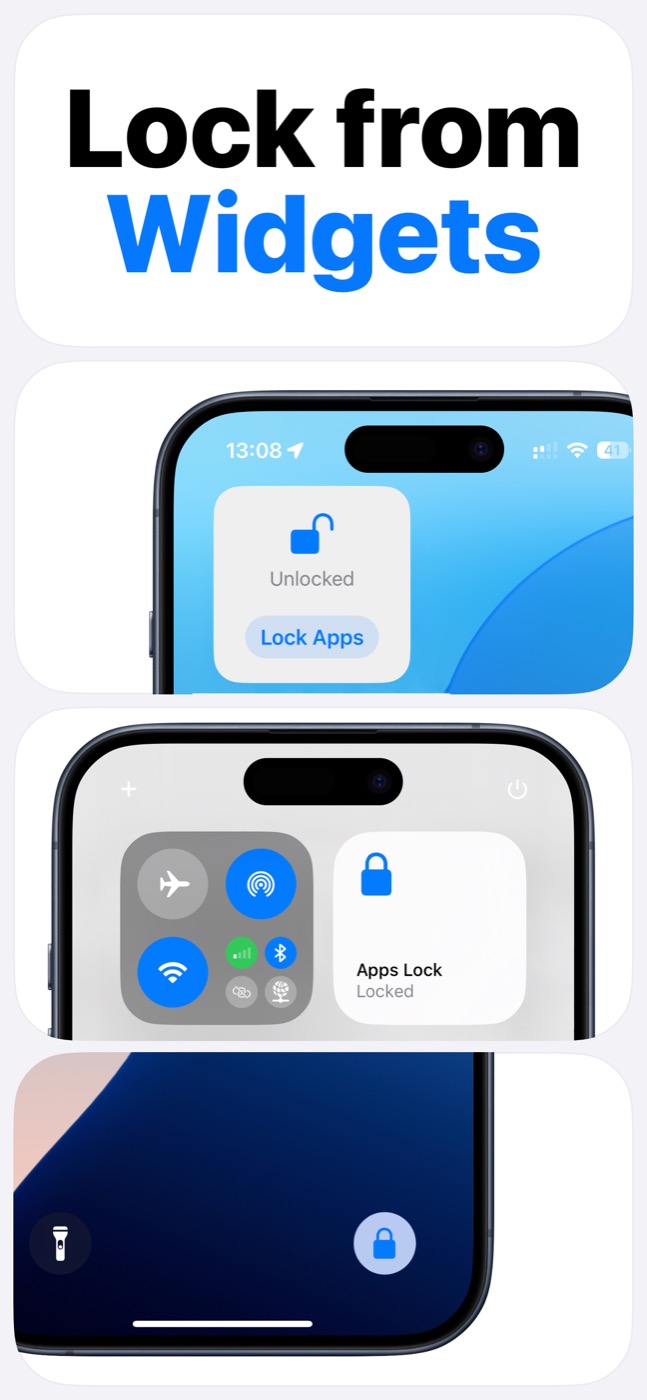
- Choose whether to lock manually, on a schedule, or from widgets.
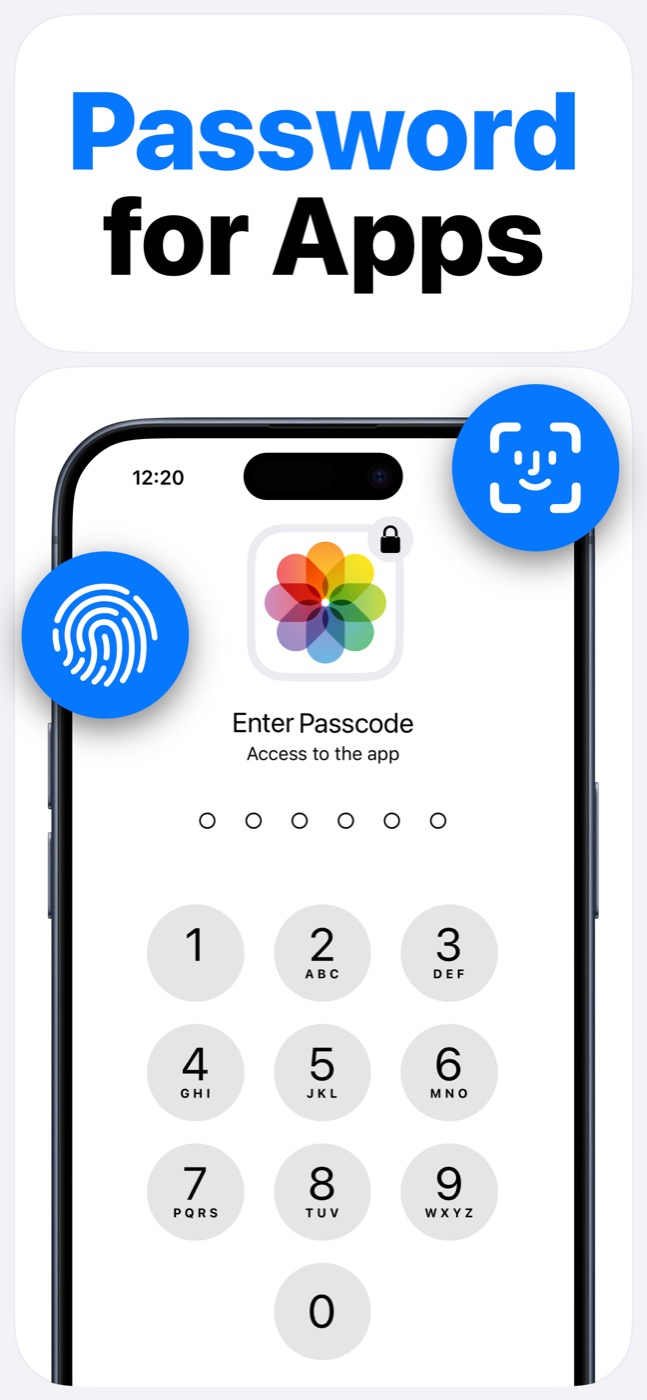
- Unlock protected apps with Face ID or passcode when you intentionally need access.
What to lock first
Start with a small list: messages, photos, social apps, entertainment apps, or any app that creates repeated impulse openings. Smaller groups are easier to test and adjust.
For focus sessions, lock the apps that usually break concentration. For privacy, lock apps that contain personal information and are frequently opened around other people.
What to expect
App Lock is not changing iOS itself. It is using the same platform family of controls that Apple provides for Screen Time and app shielding.
That is why App Lock is a trustworthy iPhone app blocker: it gives you practical control without pretending to break Apple's app sandbox.
Product screenshots
Questions people ask
Does App Lock use Apple's Screen Time system?
Yes. App Lock requires Screen Time permission and works within Apple's FamilyControls and ManagedSettings systems. Apple controls the permission prompt and the protected app picker.
Can App Lock read my messages, photos, or contacts?
App Lock is designed as an access-control layer. It does not access photos, messages, contacts, or Apple ID, and it does not read content inside protected apps.
Can App Lock bypass iOS restrictions?
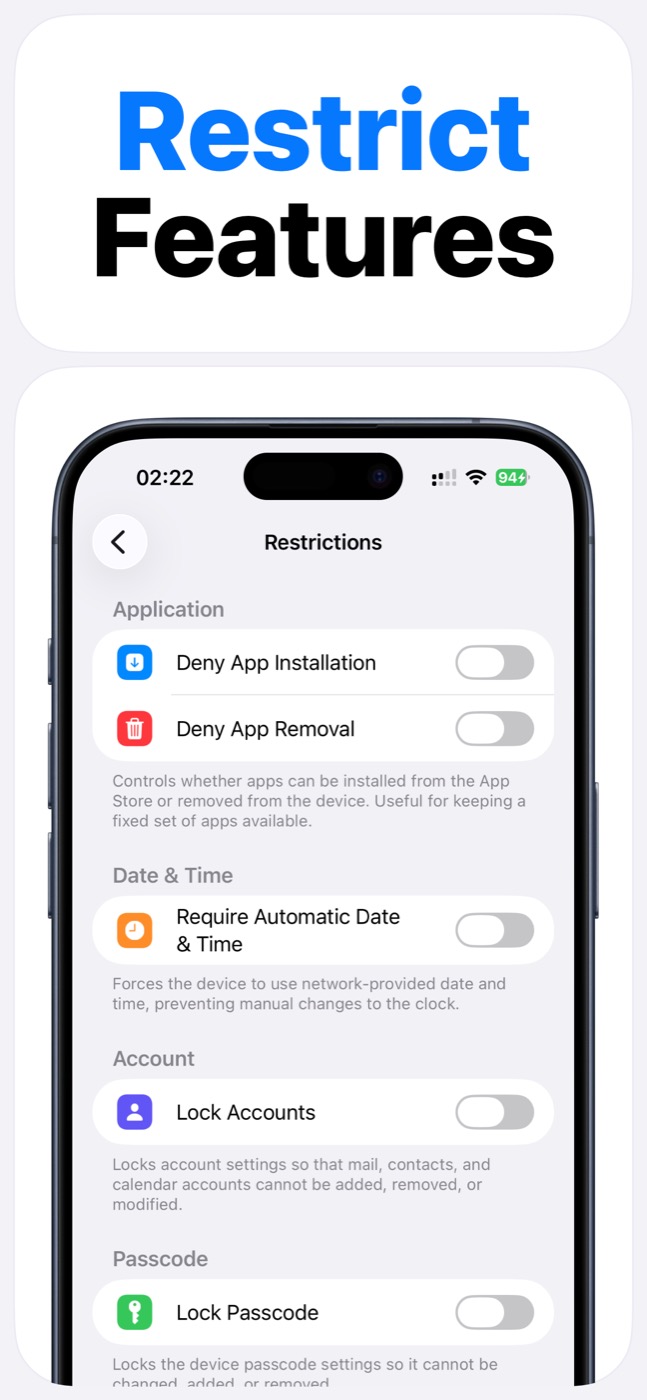
No. App Lock cannot bypass Apple's permission model. It helps block selected apps, categories, websites, and supported device features only within iOS-supported controls.
Can I lock apps for only certain times?
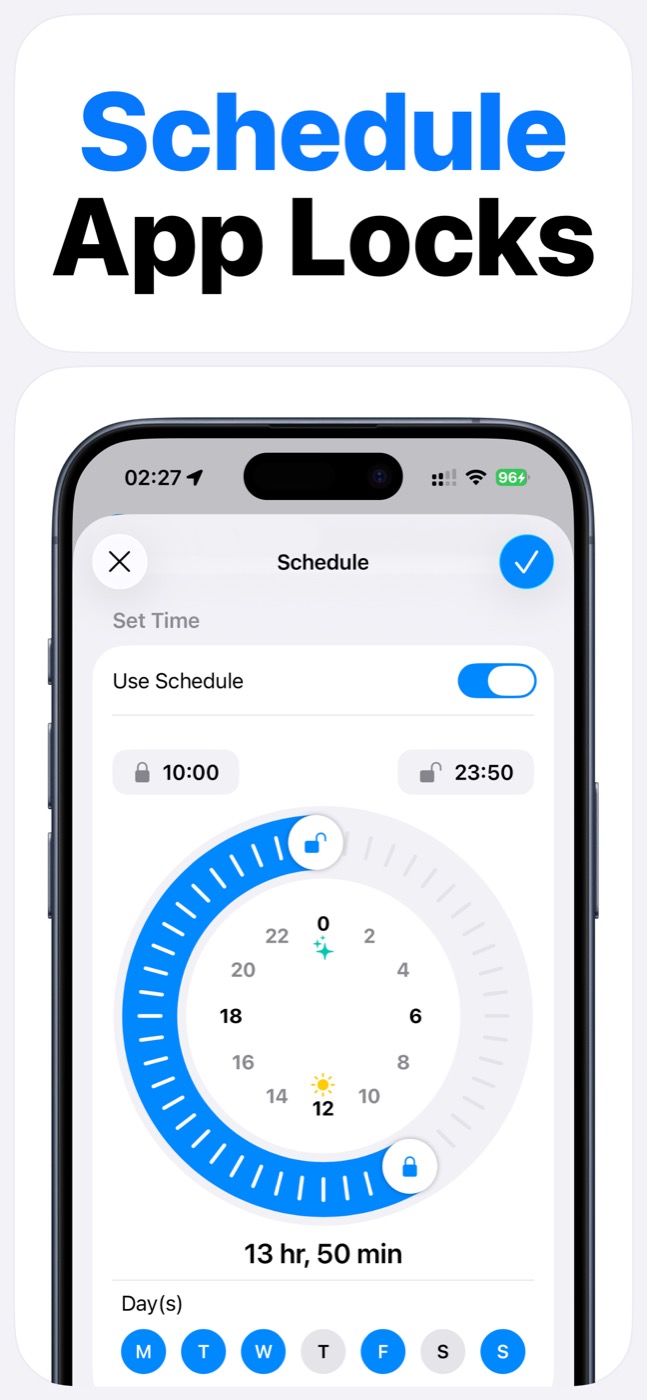
Yes. App Lock supports scheduled app locks, so a selected set of apps can be locked during recurring focus, sleep, study, or family windows.